In Part 1 of this series we installed IIS.
This section of the guide will guide you through the installation and configuration of WebDAV.
After the WebDAV installation is complete, we will enable WebDAV Publishing using IIS Manager.
Installing WebDAV on IIS 7.5 for Windows Server 2008 R2
- Log into the server that ConfigMgr will be installed on using an account with administrative privileges.
- Go to Start>Administrative Tools and click Server Manager
- In the Server Manager window, expand Roles, and then click on Web Server (IIS).
- In the Web Server (IIS) pane, scroll down to the Roles section and click on Add Role Services.
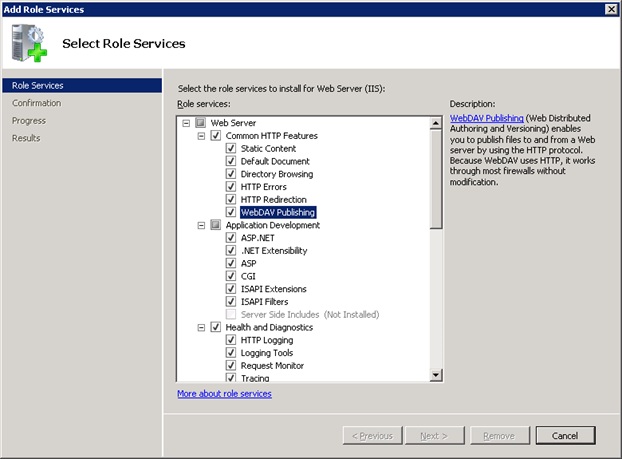
- On the Select Role Services page of the Add Role Services wizard, expand Common HTTP Features, select WebDAV Publishing, and then click Next.
- On the Confirm Installation Selections page, click Install.
- Wait patiently for the installation process to complete.
- On the Results page, click Close.
Enabling WebDAV Publishing
- Go to Start>Administrative Tools and click on Internet Information Services (IIS) Manager.
- In the Connections pane, expand the name of your server, expand Sites, and then click Default Web Site.
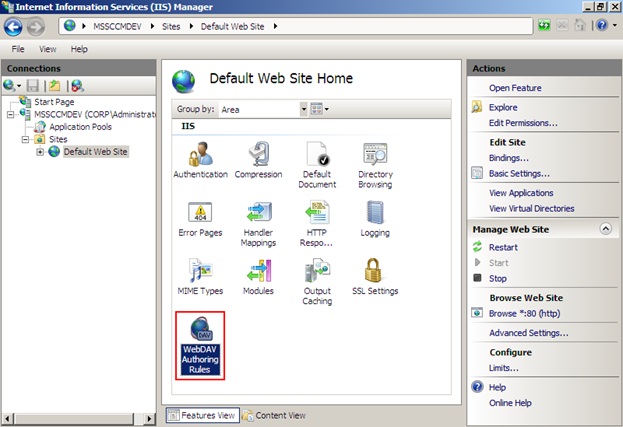
- Double-click on WebDAV Authoring Rules as shown below.
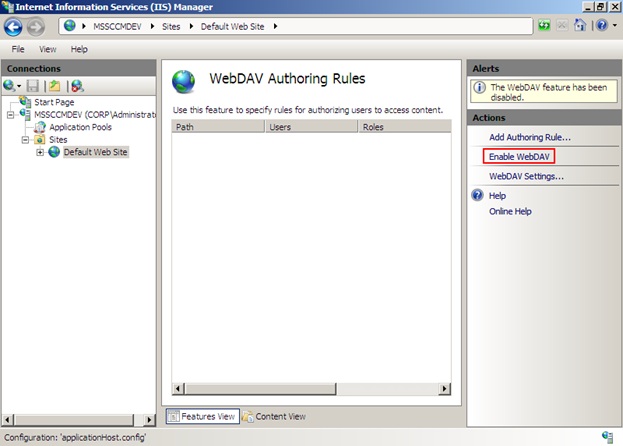
- On the WebDAV Authoring Rules page click Enable WebDAV on the Actions pane.
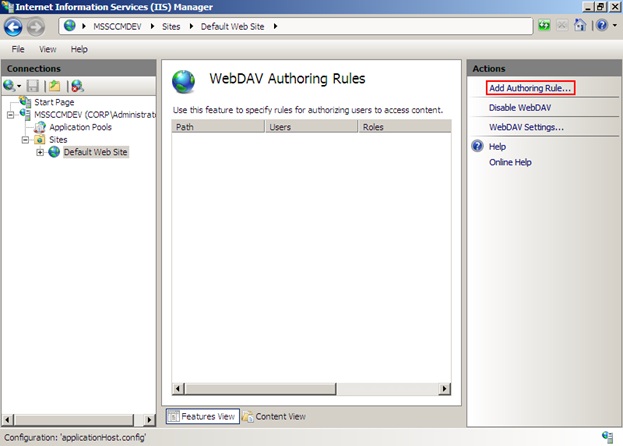
- Once WebDAV has been enabled, click Add Authoring Rule in the Actions pane.
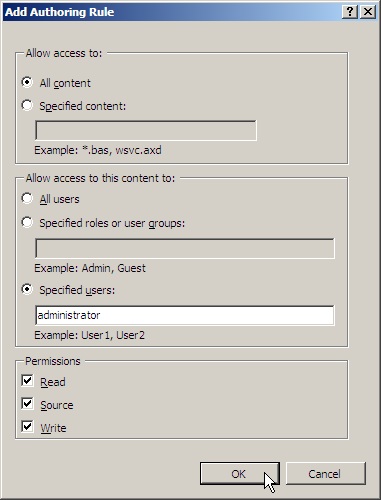
- When the Add Authoring Rule dialog opens, click on All Content to specify that the rule applies to all content types.
- Choose Specified users and type “administrator” as the user name.
- Select Read, Source, and Write for the permissions, and then click OK.
- Click Add Authoring Rule again.
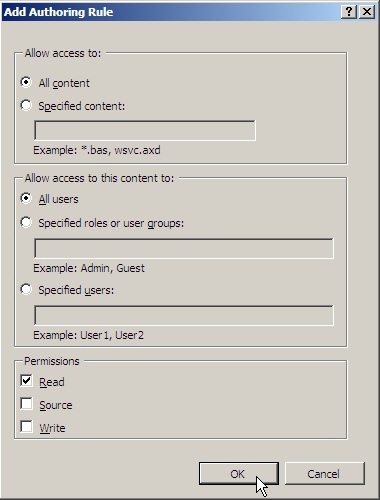
- Click on All Content to specify that the rule applies to all content types.
- Choose All Users in the Allow access to this content to section.
- Select Read in the permissions section, and then click OK
Logging in to Your WebDAV Site
Install the Windows Authentication role:
- Go to Start>Administrative Tools and click Server Manager.
- Expand Roles and click Web Server (IIS).
- Scroll down to the Roles Services section and click Add Role Services.
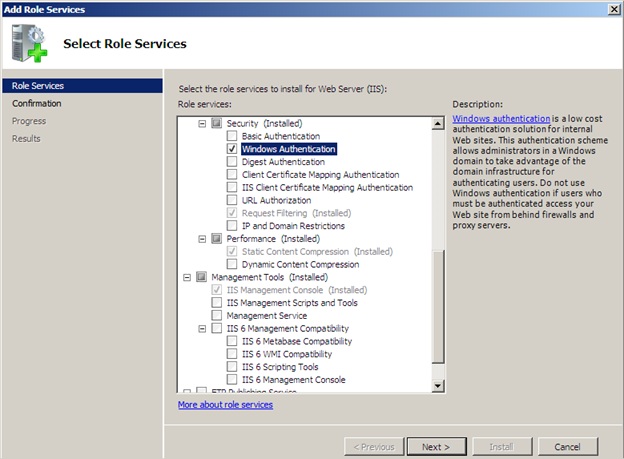
- On the Role Services page of the Add Role Services wizard, expand Security.
- Check the checkbox next to Windows Authentication and click Next.
- On the Confirmation page, click Install.
- Wait patiently for the features to install. This process may take several minutes.
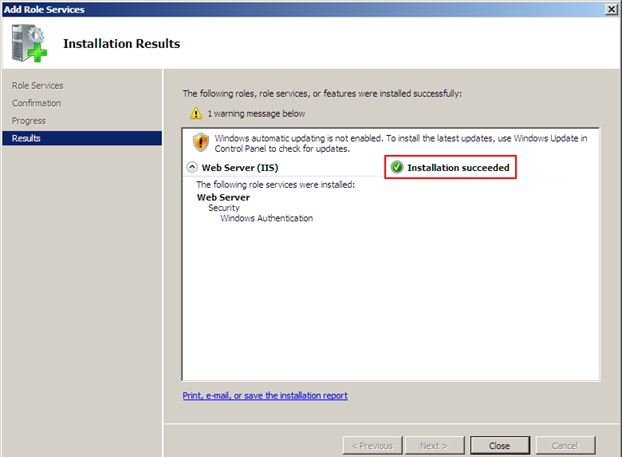
- After the install process has completed, the Results page should report Installation succeeded.
- Click Close to exit the wizard.
Install the URL Authorization role:
- Go to Start>Administrative Tools and click Server Manager.
- Expand Roles and click Web Server (IIS).
- Scroll down to the Roles Services section and click Add Role Services.
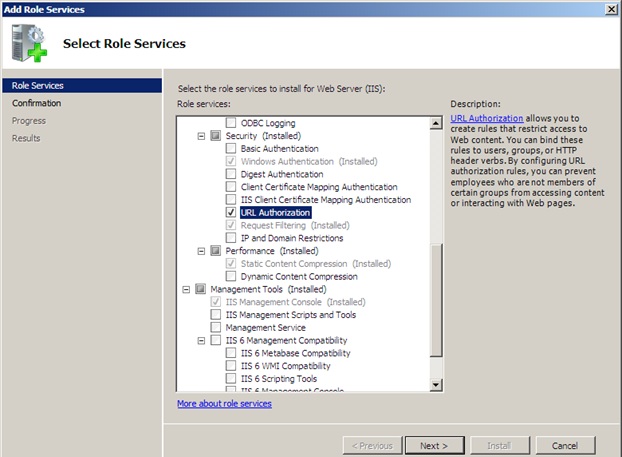
- On the Role Services page of the Add Role Services wizard, expand Security.
- Check the checkbox next to URL Authorization and click Next.
- On the Confirmation page, click Install.
- Wait patiently for the features to install. This process may take several minutes.
- After the install process has completed, the Results page should report Installation succeeded.
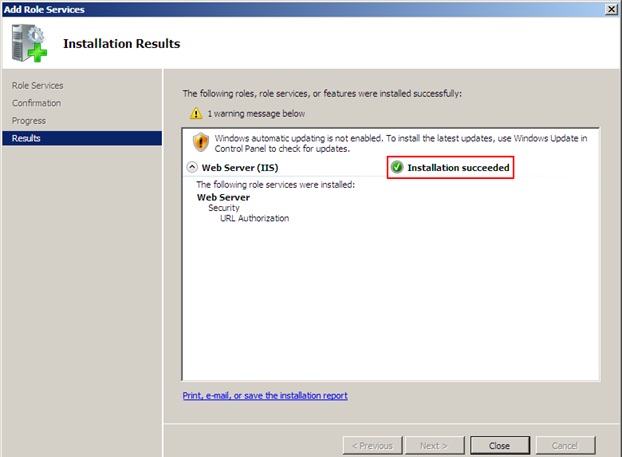
- Click Close to exit the wizard.
- Go to Start>Administrative Tools and click on Internet Information Services (IIS) Manager.
- Double-click the Authentication feature.
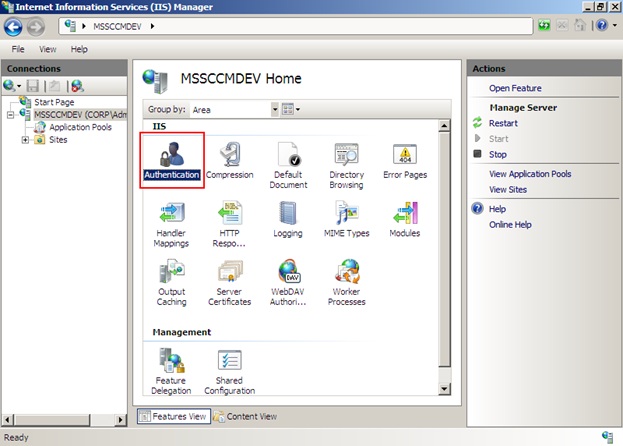
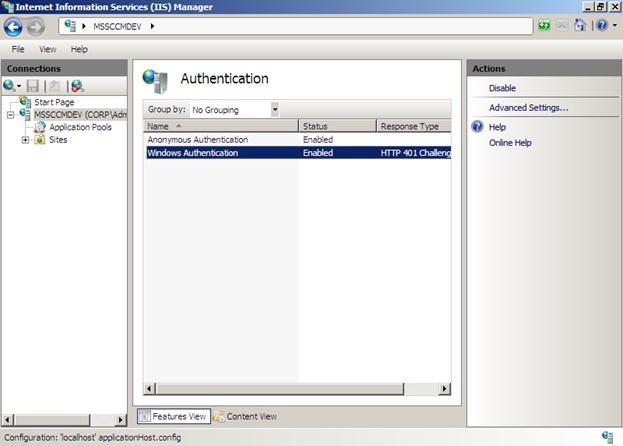
- When the Authentication feature opens, click on Windows Authentication, and then click Enable in the Actions pane.
- In the Internet Information Services (IIS) Manager window, expand Sites and click Default Web Site.
- Double-click the Authorization Rules feature.
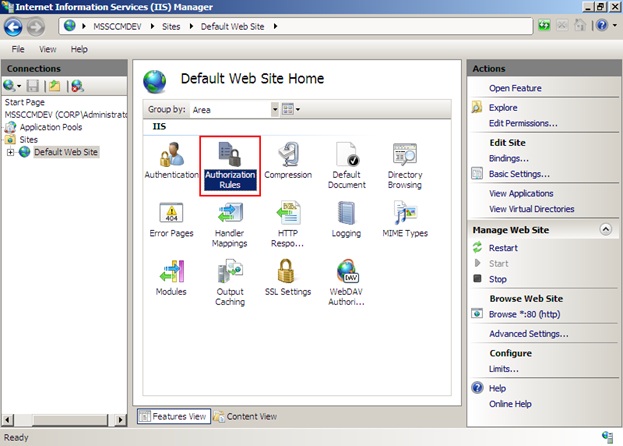
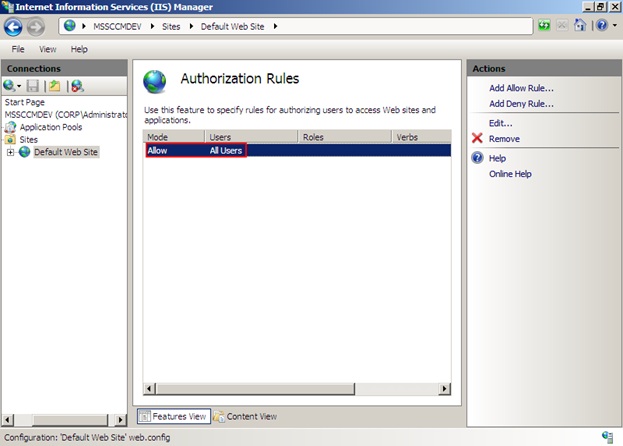
- Verify that an Allow rule is defined for All Users.
Change the property behavior of WebDAV:
- In the Internet Information Services (IIS) Manager window, expand Sites, and then click Default Web Site.
- Double-click WebDAV Authoring Rules.
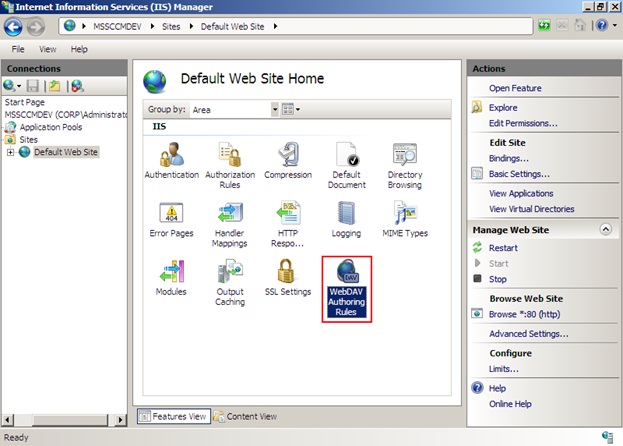
- In the WebDAV Authoring Rules page, click on WebDAV Settings in the Actions pane.
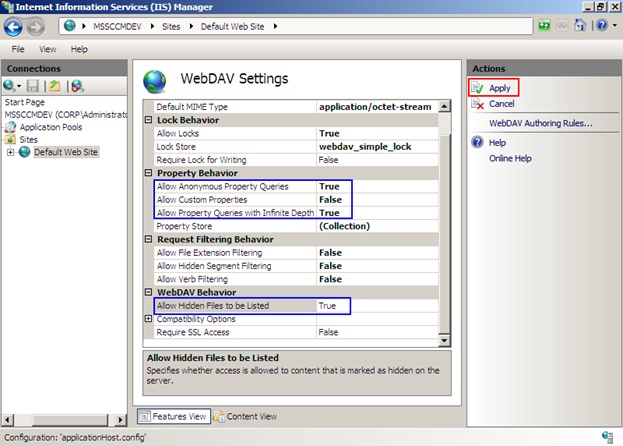
- In the WebDAV Settings page, set Allow anonymous property queries (found under Property Behavior) to True.
- Set Allow Custom Properties to False.
- Set Allow property queries with infinite depth to True.
- Set Allow hidden files to be listed (found under WebDAV Behavior) to True.
- Click Apply in the Actions pane.
- Close the Internet Information Services (IIS) Manager window.
Next in Part 3: Installing BITS and Remote Differential Compression