Introduction
This step-by-step guide will guide you through the process of installing a Microsoft System Center Configuration Manager (ConfigMgr) Primary Site and prerequisites.
This guide assumes that you already have an Active Directory Domain.
The material in this guide is presented as steps followed by a screenshot:
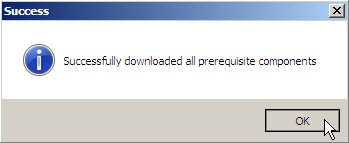
26. When the downloading process has completed a Success popup window will appear. Click OK.
Installing Internet Information Services (IIS)
In this section of the guide you will be installing the Internet Information Services (IIS) role.
IIS is required by ConfigMgr for the following role/features to function: BITS enabled Distribution Points, Management point, Reporting point, Fallback status point, Software update point and Server locator point.
- Log into the server that ConfigMgr will be installed on using an account with administrative privileges.
- Go to Start>Administrative Tools and click Server Manager.
- In the Server Manager window scroll down and click Add Roles.
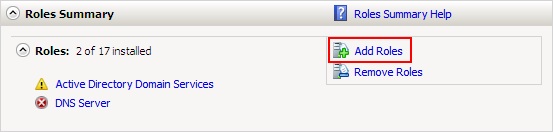
- On the Before You Begin page of the Add Roles wizard click Next.
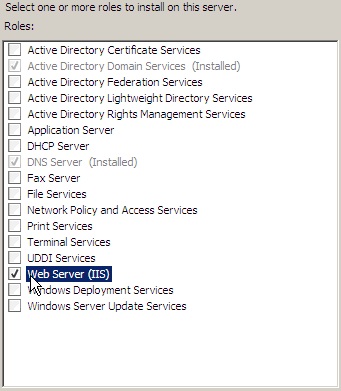
- On the Server Roles page, click the checkbox next to Web Server (IIS).
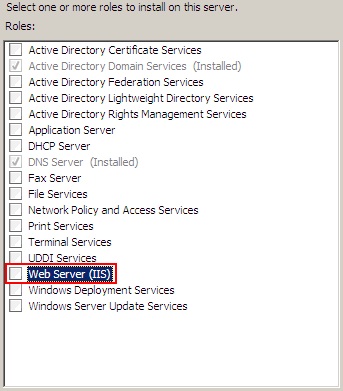
- A message box may inform you that you must also install the Windows Process Activation Service. Click Add Required Features. If you do not encounter this message box, continue to the next step.
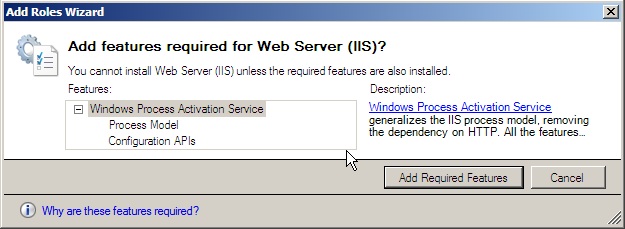
- The checkbox next to Web Server (IIS) will now have a checkmark in it. Click Next.
- On the Web Server (IIS) page, click Next.
- On the Roles Services page, click Next.
- On the Confirmation page, click Install.
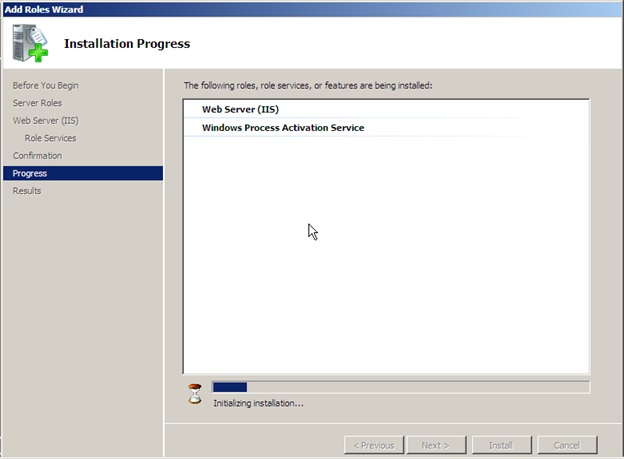
- Wait patiently for IIS to install. The process may take several minutes to complete.
- Once the installation completes the Results page will be displayed. The results for both installations should be Installation succeeded.
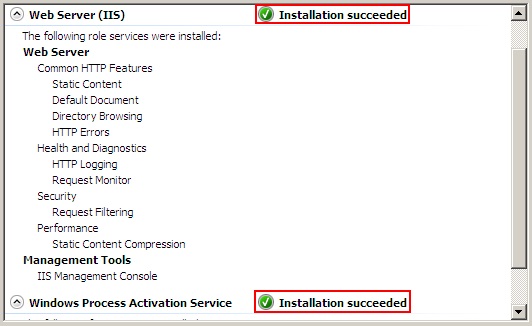
- On the Results page, click Close.
- Open IE and enter 127.0.0.1 into the address bar and hit enter. The default IIS 7.0 webpage should display.
- Go to Start>Administrative Tools and click Server Manager.
- In the Server Manager window, click Roles.
- Scroll down to Web Server (IIS) on the Roles page and click Add Role Services.
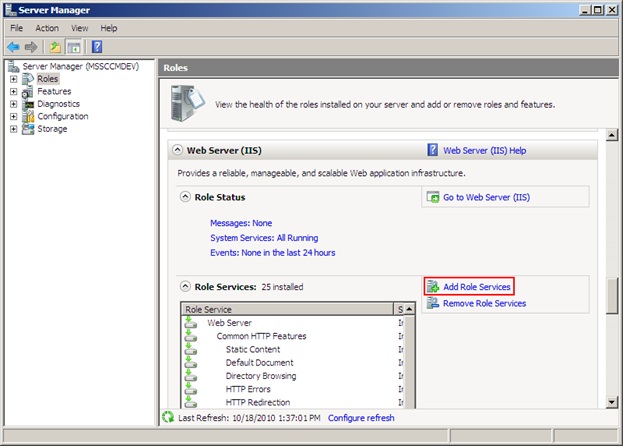
- On the Role Services page of the Add Role Services wizard, select the ASP.NET check box.
- When prompted, click Add Required Role Services to add the dependent components.
- On the Role Services page of the Add Role Services wizard, select the ASP check box.
- Ensure that both the IIS 6 Metabase Compatibility and IIS 6 WMI Compatibility check boxes are selected, and then click Next.
- On the Confirmation page of the Add Role Services wizard, click Install.
- Wait patiently for the role services to install.
- On the Results page of the Add Role Services wizard, verify that the installation succeeded, and then close the Server Manager.
Next in Part 2: Installing and configuring WebDAV