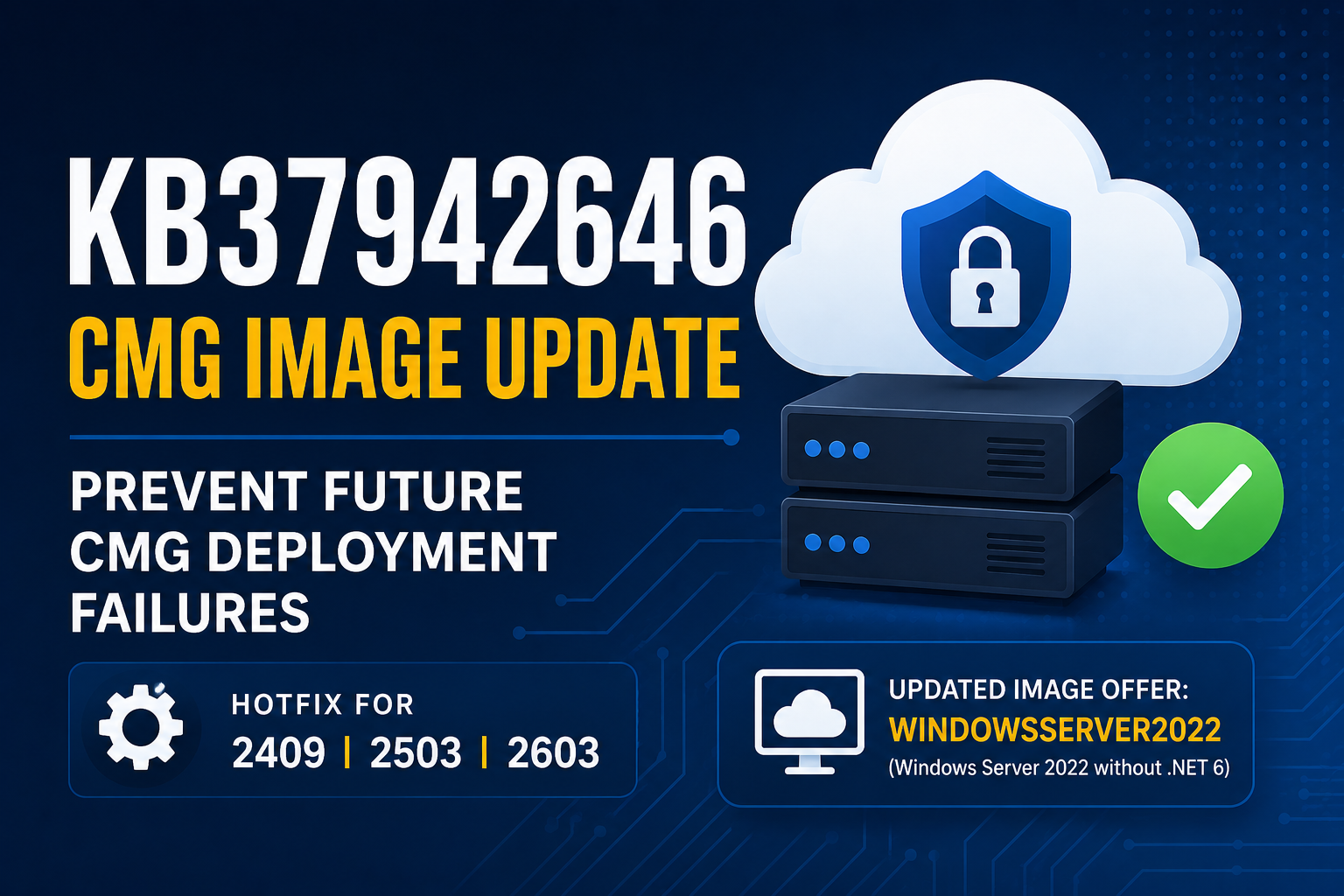
Microsoft released Hotfix KB37942646 for Configuration Manager on June 2, 2026. This update addresses an upcoming Cloud Management Gateway (CMG) issue related to Azure image deprecation.
The update changes the Azure image used for new CMG deployments and CMG reimaging operations. Without it, CMG deployments that rely on the older Windows Server 2022 marketplace image will eventually fail once Microsoft begins enforcing the image retirement in early 2027.
The update is available for:
- Configuration Manager 2603
- Configuration Manager 2503 with KB32851084 installed
- Configuration Manager 2409 with KB30385346 installed
If you’re running Configuration Manager 2509, this fix is already included in Update Rollup KB37864969 and doesn’t require a separate installation.
According to Microsoft, no reboot or site reset is required after installation.
What’s changing?
Microsoft is retiring the legacy Windows Server 2022 Azure Marketplace image offer named windowsserver that includes .NET 6. Once enforcement begins in early 2027:
- New CMG deployments that reference the retired image will fail
- CMG reimaging operations that reference the retired image will fail
- The retired image will no longer receive image refresh updates
KB37942646 updates Configuration Manager to use Microsoft’s newer windowsserver2022 image offer instead.
That image doesn’t include the deprecated .NET 6 packages and remains supported going forward.
If you already have a functioning CMG, nothing changes immediately. This update prevents future deployment and maintenance problems.
Updated component versions
After installation, the Configuration Manager console version is updated to the following build numbers:
| Version | Console Version |
|---|---|
| 2409 | 5.2409.1183.2100 |
| 2503 | 5.2503.1083.2100 |
| 2603 | 5.2603.1035.1200 |
Installing Steps
- Backup the ConfigMgr Database
- Take a snapshot if the Primary Site Server is a VM
- Go to Administration → Updates and Servicing in the ConfigMgr Console
- Locate KB37942646
- Right-click the hotfix and choose Download
- Wait for the hotfix to download (The status will change to “Ready to install”)
- Right-click KB37942646 and choose Run prerequisite check
- Fix any issues the prerequisite checker found
- Right-click KB37942646 and choose Install Update Pack
- Monitor CMUpdate.log for successful installation
- Restart the console and update if prompted
- Upgrade clients
Post-install validation
After the update finishes:
- Confirm the update status shows Installed
- Verify CMG health in the Configuration Manager console
Links
https://learn.microsoft.com/en-gb/intune/configmgr/hotfix/2603/37942646