In Part 1 of this series we installed IIS.
In Part 2 we installed and configured WebDAV.
In Part 3 we installed BITS and Remote Differential Compression.
A ConfigMgr administrative group needs to be created and set up in the Active Directory before SQL Server can be installed.
SQL Server is a prerequisite of ConfigMgr. SQL Server is used by a ConfigMgr site server to store its site database.
This section will guide you through the creation process of a ConfigMgr administrator group and the installation and configuration of SQL Server 2008.
Creating a ConfigMgr Administrator Group
- Create a new user in Active Directory and name it sccmadmin and put a checkmark next to the Password never expires option.
- Go to Start>Administrative Tools and click Active Directory Users and Computers.
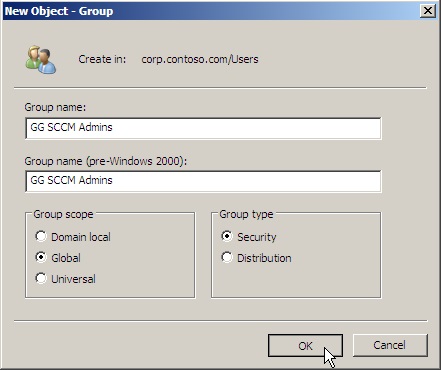
- Right-click on Global Groups in the Active Directory Users and Computers window, go to New in the context menu and click Group.
- In the New Object – Group window, type “GG SCCM Admins” as the group name, and then click OK.
Add the sccmadmin user to the GG SCCM Admins group
- Double-click on the GG SCCM Admins group.
- Click the Members tab in the GG SCCM Admins Properties window.
- Click the Add button and enter the sccmadmin user ID and click on Check Names.
- Click OK.
- Click on Apply in the GG SCCM Admins Properties window, and then click OK.
- Close the Active Directory Users and Computers window.
- Log into the ConfigMgr server using an account with administrative privileges.
- Add the sccmadmin user account to the local Administrators group.
Installing Microsoft SQL Server 2008
- Log into the ConfigMgr server using an account with administrative privileges.
NOTE: SQL 2008 can be installed on a separate server instead if required. - If running Windows Server 2008 R2, install the Application Server role before proceeding.
- Create the following user accounts in Active Directory: SQLAgent, SQLReporting, and SQLService.
NOTE: When creating each account, verify that User must change password at next login is unchecked and verify that both User cannot change password and Password never expires are both checked. - Insert the Microsoft SQL Server 2008 DVD into the DVD ROM drive.
- Run the Setup.exe from the Autorun or by browsing to the root of the DVD.
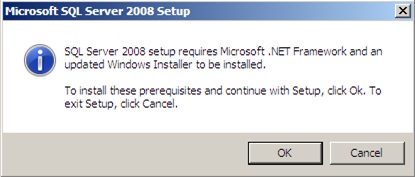
- If prompted, click OK to install the prerequisites. Complete all of the wizards for the prerequisite installs.
- In the SQL Server Installation Center window click on Installation.
- On the Installation page of the SQL Server Installation Center window click on New SQL Server stand-alone installation or add features to an existing installation.
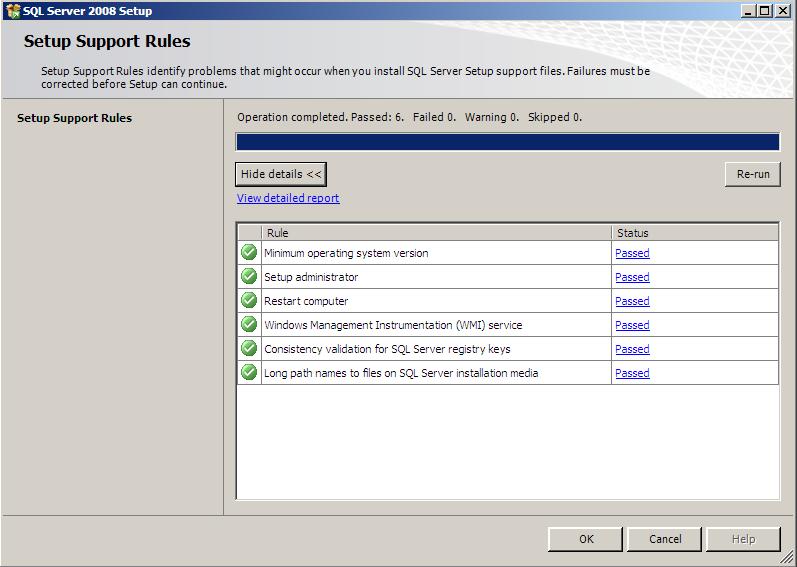
- In the SQL Server 2008 setup wizard on the Setup Support Rules page, verify that all of the tests passed, and then click OK.
- On the Product Key page, specify your product key, and then click Next.
- On the License Key page, if you accept the terms, select I accept the license terms, and then click Next.
- On the Setup Support Files page, click Install.
- Wait patiently for the setup support files to install.
- On the Setup Support Rules page, verify that none of the tests failed, and then click Next.
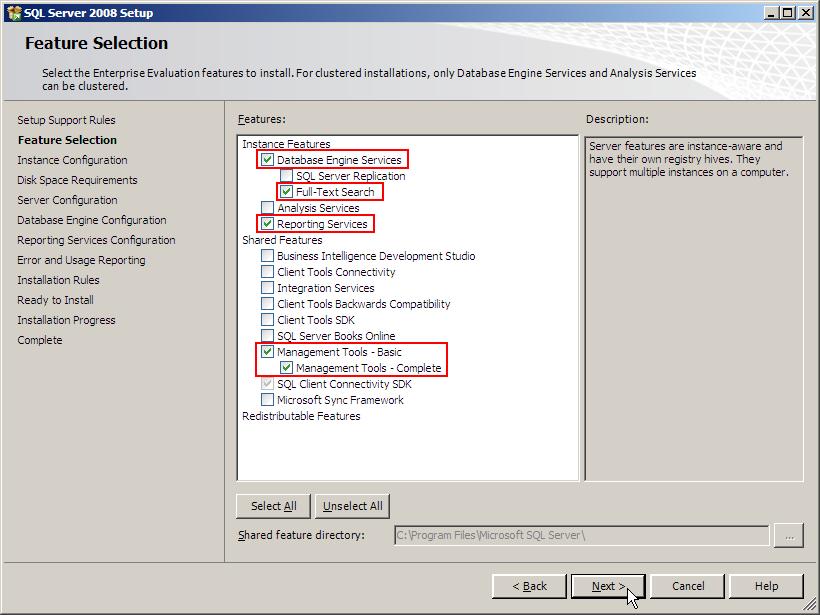
- On the Feature Selection page, select Database Engine Services, Full-Text Search, Reporting Services, Management Tools – Basic, and Management Tools – Complete, and then click Next.
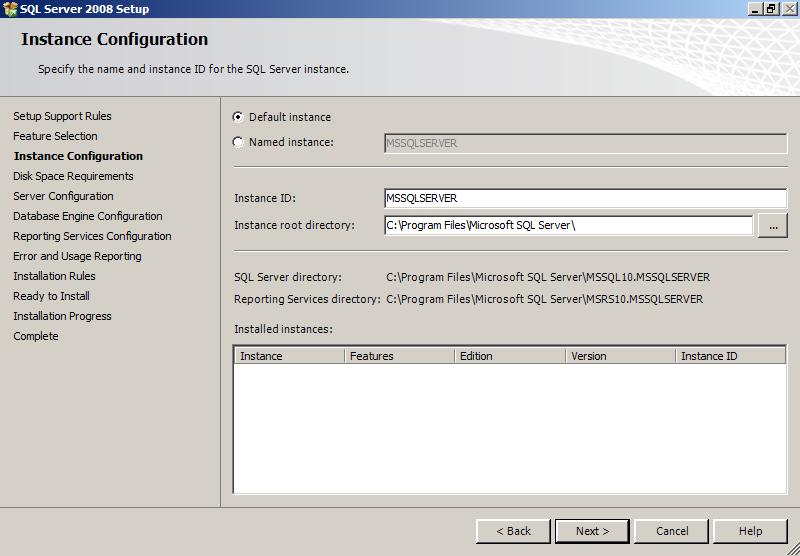
- On the Instance Configuration page, select Default instance, and then click Next.
- On the Disk Space Requirements page, review the disk space required and then click Next.
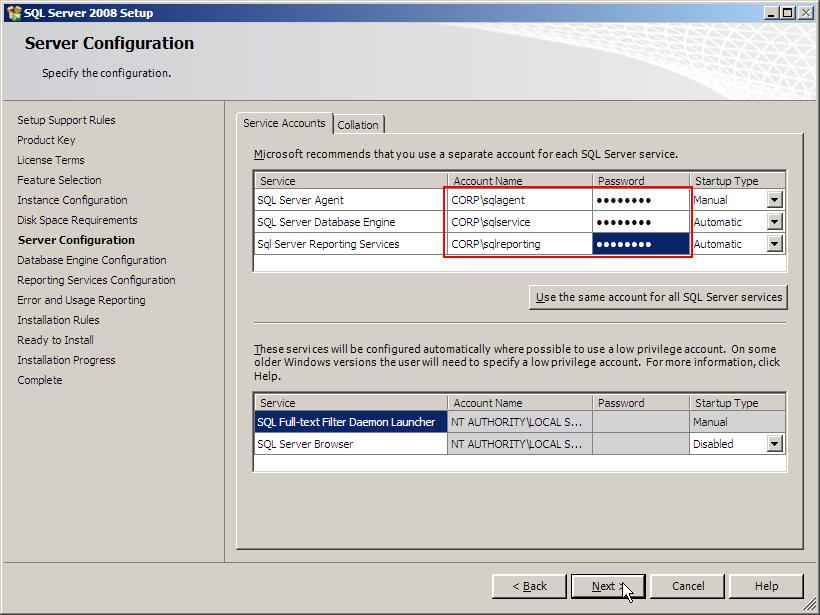
- On the Server Configuration page, provide the SQLAgent account and password for the SQL Server Agent field, the SQLService account and password for the SQL Server Database Engine field, and the SQLReporting account and password for the SQL Server Reporting Services field, and then click Next.
- On the Database Engine Configuration page, make sure Windows authentication mode is selected, and then click the Add button and provide the GG SCCM Admins group that we created earlier.
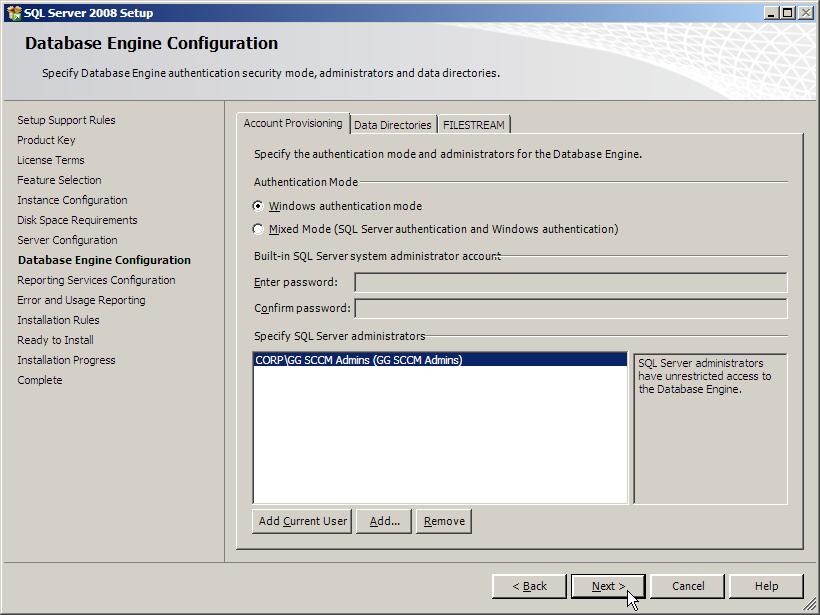
- Click on the Data Directories tab on the Database Engine Configuration page and change the drive letters to the drive letters appropriate for your installation, and then click Next.
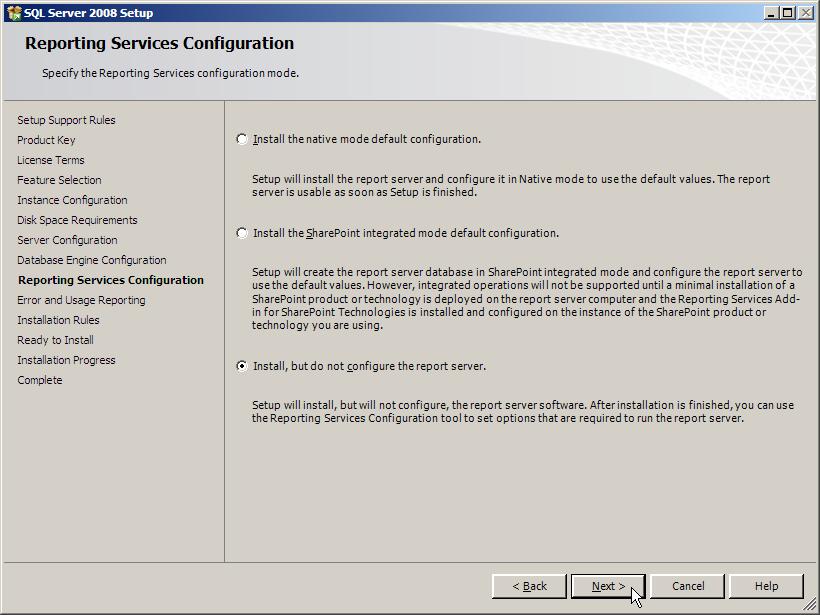
- On the Reporting Services Configuration page, make sure that Install, but do not configure the report server is selected, and then click Next.
- On the Error and Usage Reporting page, click Next.
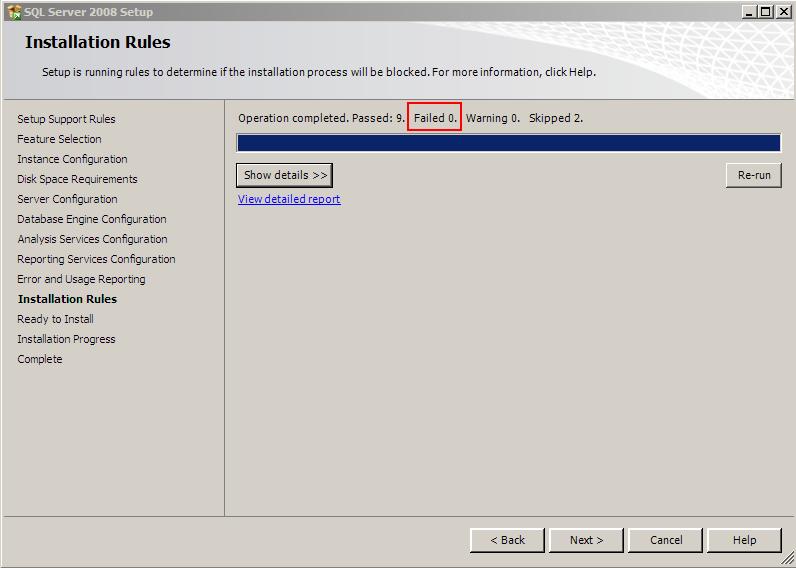
- On the Installation Rules page, verify that none of the tests failed, and then click Next.
- On the Ready to Install page, click Install.
- Wait patiently for SQL Server 2008 to finish installing. The process may take several minutes.
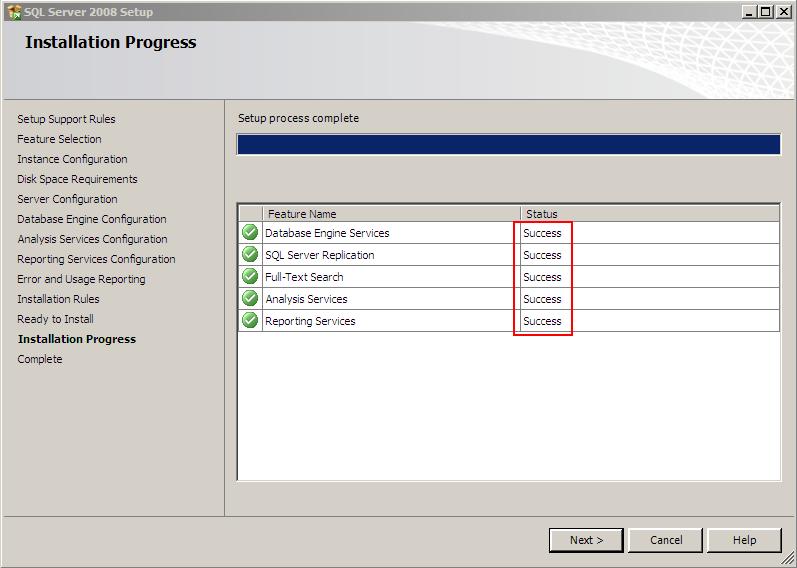
- On the Installation Progress page, verify that all of the components installed successfully, and then click Next.
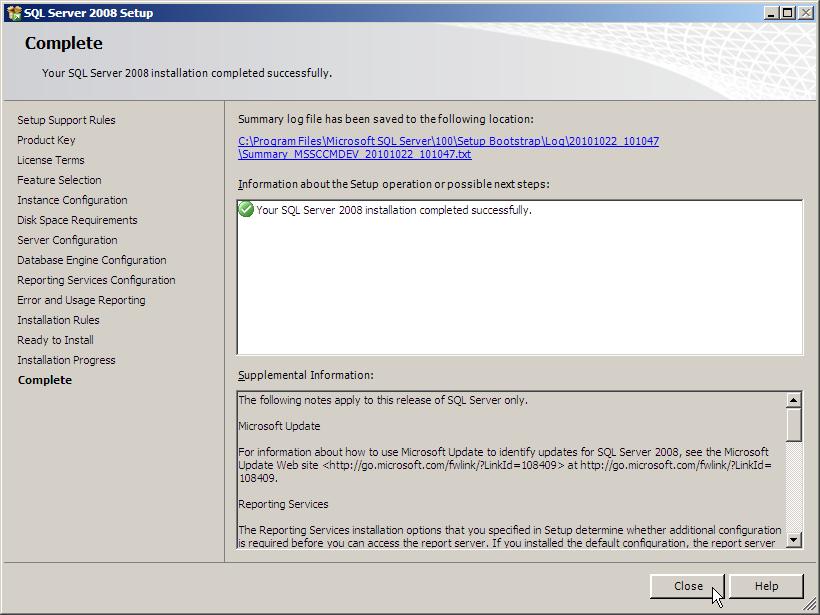
- On the Complete page, click Close.
- Close the SQL Server Installation Center.
- Reboot the server.
Next in Part 5: Extending the Active Directory Schema