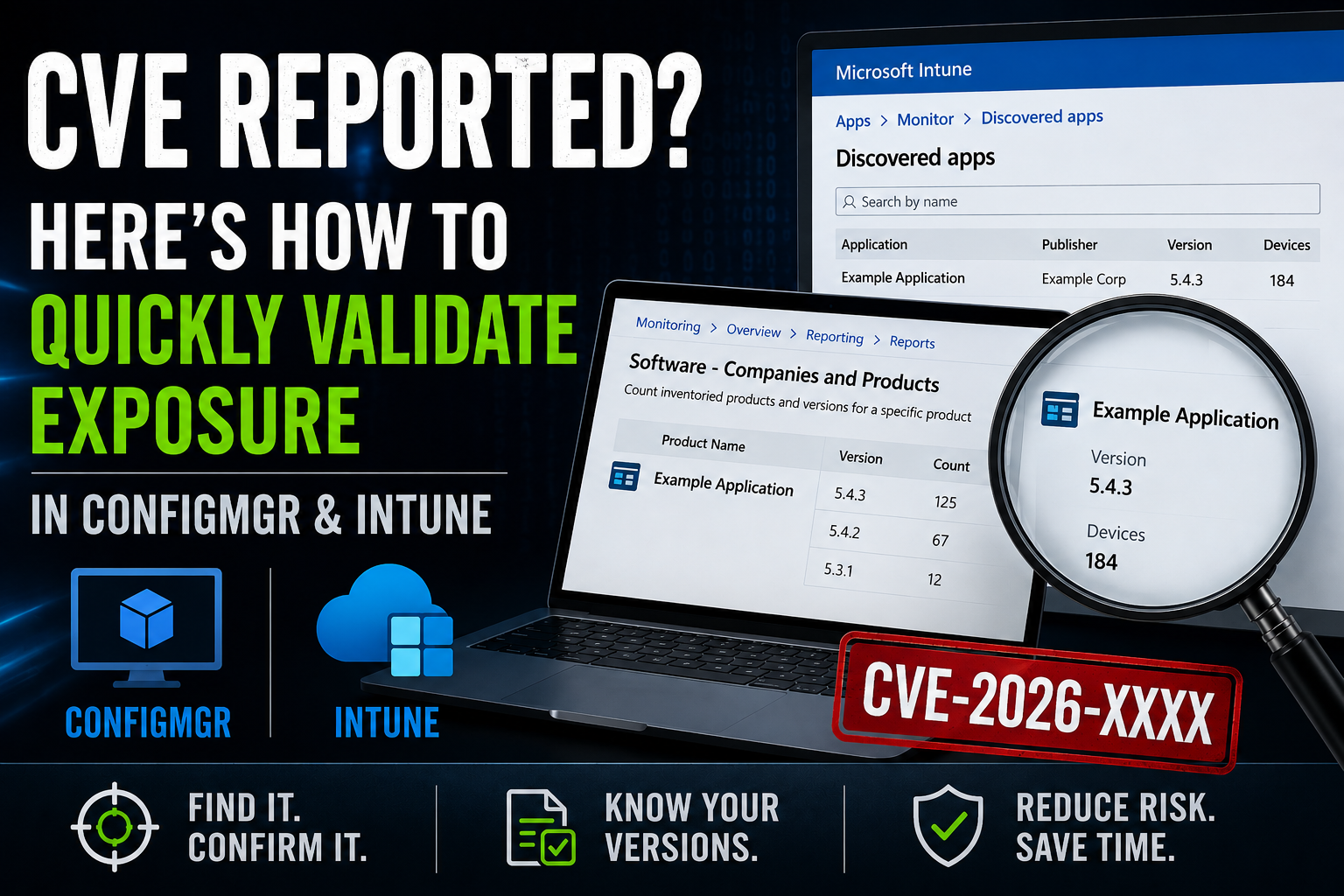
The real problem with CVE remediation
I’ve been having a lot of conversations lately around patching CVEs and vulnerability remediation.
And it brought up a really good question:
“Can you quickly tell if you’re affected?”
Most teams can answer that eventually. The problem is how long it takes.
What actually happens
A CVE shows up in a vulnerability scanner report. Tools like Qualys, Rapid7, Defender Vulnerability Management, or Tenable flag it.
Then it gets handed off.
Now it’s on you to validate it in your own environment.
And that’s where things slow down.
The report says something exists.
But now you have to prove it and remediate it:
- Where is it?
- How many devices?
- Is it still there?
That usually means jumping between tools, second-guessing inventory, and waiting on data to catch up.
What you’re really trying to answer
It comes down to this:
“Is this software installed anywhere, and which version is it?”
If you can answer that in a few minutes, you’re in good shape.
If you can’t, every CVE turns into a small investigation.
Checking in ConfigMgr
If you’re using Microsoft Endpoint Configuration Manager, you already have the data—assuming inventory is healthy. That’s a whole other can of worms.
Go to:
Monitoring → Overview → Reporting → Reports
Software – Companies and Products
→ Count inventoried products and versions for a specific product

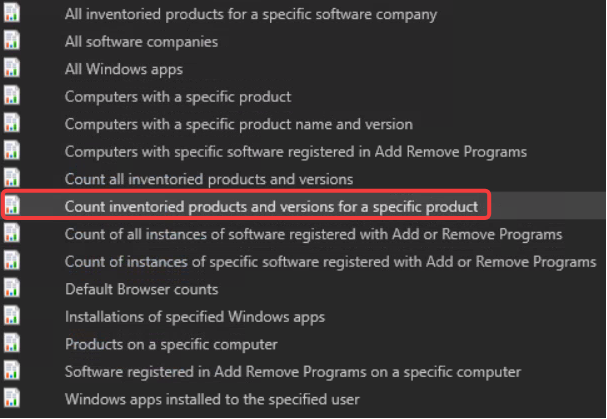
Search for the application.
Look at the versions. Drill into the devices if needed.
Ninja Note: This report relies on Software Inventory data and may not reflect real-time state.
Where this usually breaks down
If nothing shows up, people assume they’re clear.
That’s not always true.
Check:
- Is software inventory running?
- Are software inventory reports from the clients getting successfully processed?
- Are devices actually checking in?
If your data is stale, your answer is wrong.
Checking in Intune
With Microsoft Intune, you’ll use:
Apps → Monitor → Discovered apps
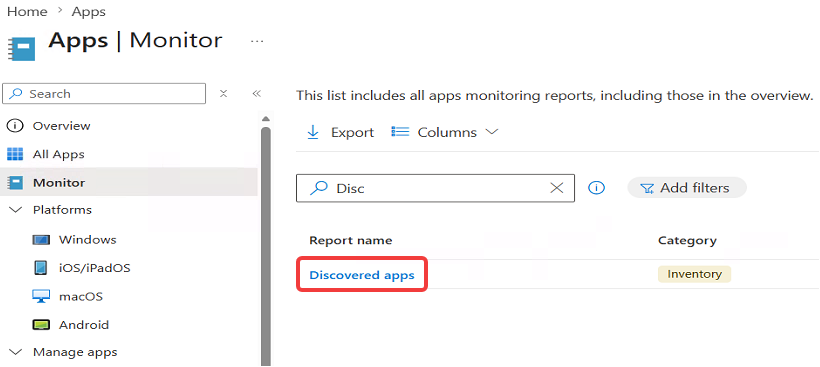
Search for the application.
From there:
- Check versions
- Look at device counts
- Drill into devices if needed
One thing to keep in mind
This data isn’t real-time.
Discovered Apps updates based on device check-in:
- Win32 apps update about every 24 hours
- Modern apps can take up to 7 days
So if a version doesn’t show up, it might not be there. Or it just hasn’t reported yet.
Validate on a single device in Intune
If you’re using Microsoft Intune with Enhanced App Inventory, this is a faster way to validate a specific device.
You’ll need an App Inventory policy deployed to your devices for this to show up.
After devices check in with the inventory policy:
- Go to Devices → All devices
- Select a device
- Go to All Apps
- Open the App Inventory tab
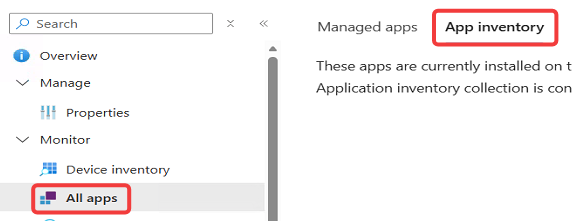
From there, you can see installed apps and versions with data that updates multiple times a day.
This doesn’t replace Discovered Apps for finding everything across the environment. But once you have a device in question, it’s a much faster way to confirm what’s actually installed.
If you’ve got a quicker way to validate this in your environment, I’m curious how you’re doing it.