The Ask
I ran into this recently while working with a team that was transitioning from another endpoint management platform over to Microsoft Endpoint Configuration Manager.
The ask was simple:
“How do we install an application on a single device right now without building a collection?”
In their previous tool, this was a one-click operation.
In ConfigMgr… yeah… not so much.
If you’ve been around ConfigMgr for a while, you know the drill:
- Create a collection
- Add the device
- Deploy the app
- Wait for policy or trigger it manually
- Wait…
- Wait…
- Tell the user “it should be there now”
- Wait some more… (You start having flashbacks of the good ol’ “Slow Moving Software” days. 🙃)
- Clean it all up later
It works, but it’s clunky…
What a lot of people still don’t realize (I admit I forgot about it until asked which is why I’m writing this blog) is that ConfigMgr actually has a built-in way to do this in real-time now.
The Feature
ConfigMgr has had a built-in right-click option for this since version 2111:
Install Application
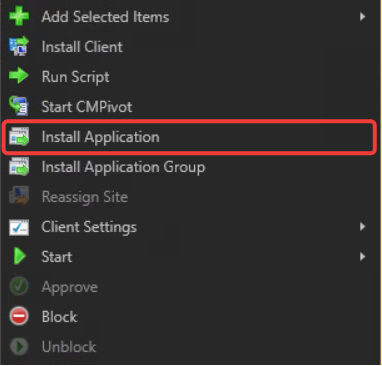
At first glance, it looks like exactly what you’d expect.
But if you’ve ever tried it and saw an empty list… you probably wrote it off.
That’s because this feature only works when it’s backed by the optional Approve application requests for users per device feature.
How It Actually Works
This isn’t a traditional deployment.
Behind the scenes, ConfigMgr is using the application approval process. Here’s how the process looks:
- You deploy an app as Available
- You require admin approval for device installs
- When you right-click → Install Application, ConfigMgr creates a pre-approved request
- The client processes it almost immediately
None of the waiting for standard policy cycles or creating temporary collections nonsense.
Ninja Note: This also works with Application Groups. If you right-click a device, you’ll see a similar option for Application Groups.
The Setup
There are two key pieces to get this working.
1. Enable the Feature
Go to:
Administration → Updates and Servicing → Features

Enable:
Approve application requests for users per device
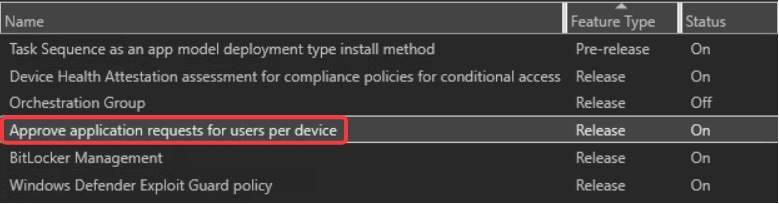
This unlocks device-based approvals, which this feature depends on.
2. Deploy Applications the Right Way
When you deploy the application:
- Deploy to a device collection
- Set it as Available
- Enable: An administrator must approve a request for this application on the device
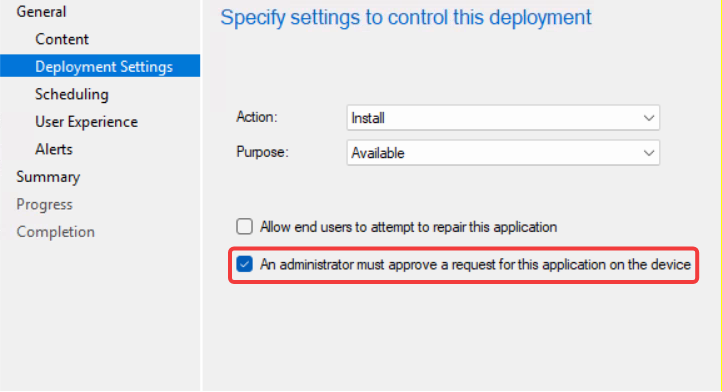
If you skip that last checkbox, the app will never show up in the right-click → Install Application menu.
P.S. This is the part that trips most people up.
Using It
Once that’s in place:
- Go to Assets and Compliance → Devices
- Right-click a device
- Select Install Application
- Pick the app
- Click OK
That’s it.
The client receives the request and kicks off the install without the usual delay.
Ninja Note: Folder organization for your apps is very important here. Recursive search does not exist in this menu. If the folder structure is cluttered or doesn’t make sense, it will be hard for folks to find the app they’re trying to deploy.
If You Delegate Access
If your ConfigMgr environment uses delegated administration, permissions can affect whether this works as expected.
A user may have access to devices and applications, but still be unable to install apps using the right-click action if the required security rights aren’t assigned.
At minimum, the account needs:
- Application → Read
- Application → Approve
- Collection → Read
- Collection → Read Resource
- Collection → Modify Resource
- Collection → View Collected File
If you want to keep things simple, assigning the built-in Application Administrator role covers the required permissions.
A Few Things to Be Aware Of
- These apps won’t show up in Software Center until Install Application is triggered because no policy is sent to the client
- This is device-based, not user-driven
- It still relies on client health (as always)
- “Real-time” still depends on fast policy processing, but it’s significantly faster than traditional deployments
Taking It to the Next Level
Once you understand how this feature works behind the scenes, a lot of interesting automation scenarios open up.
Because ConfigMgr is ultimately creating an approved application request, you can automate the same process yourself with PowerShell, custom right-click tools, utilities, workflows, or orchestration platforms.
This is where things start getting really useful.
For example:
- A custom utility could expose a simple “Install Now” button for approved apps
- A custom right-click utility could trigger installs without creating temporary collections
- An automation workflow could install software dynamically during troubleshooting or remediation scenarios
Here’s a simple example that creates an approved application request directly through WMI using PowerShell:
# -------------------------------
# CONFIGURATION
# -------------------------------

$SiteServer   = "CM01"
$ComputerName = "PC001"
$AppName      = "7-zip"

$AutoInstall  = $true
$Comments     = "Installed via PowerShell approval automation script"

# -------------------------------
# GET SITE CODE
# -------------------------------

$Provider = Get-CimInstance `
    -ComputerName $SiteServer `
    -Namespace "root\sms" `
    -Query "SELECT SiteCode FROM SMS_ProviderLocation WHERE ProviderForLocalSite = true"

if (-not $Provider) {
    Write-Host "Unable to determine ConfigMgr Site Code." -ForegroundColor Red
    return
}

$SiteCode = $Provider.SiteCode
$Namespace = "root\sms\site_$SiteCode"

# -------------------------------
# FIND APPLICATION
# -------------------------------

$Application = Get-CimInstance `
    -ComputerName $SiteServer `
    -Namespace $Namespace `
    -Class SMS_ApplicationLatest |
    Where-Object {
        $_.LocalizedDisplayName -like "*$AppName*"
    } |
    Select-Object -First 1

if (-not $Application) {
    Write-Host "Application not found in ConfigMgr." -ForegroundColor Red
    return
}

$ApplicationID = $Application.ModelName

Write-Host "Application Found:" -ForegroundColor Cyan
Write-Host "Name: $($Application.LocalizedDisplayName)"
Write-Host "ApplicationID: $ApplicationID"
Write-Host ""

# -------------------------------
# FIND TARGET DEVICE
# -------------------------------

$Machine = Get-CimInstance `
    -ComputerName $SiteServer `
    -Namespace $Namespace `
    -Query "SELECT * FROM SMS_R_System WHERE Name = '$ComputerName'"

if (-not $Machine) {
    Write-Host "Device not found in ConfigMgr." -ForegroundColor Red
    return
}

$ClientGUID = $Machine.SMSUniqueIdentifier

Write-Host "Target Device Found:" -ForegroundColor Cyan
Write-Host "Computer: $ComputerName"
Write-Host "Client GUID: $ClientGUID"
Write-Host ""

# -------------------------------
# CREATE APPROVED REQUEST
# This is the backend mechanism
# used to trigger the install
# -------------------------------

try {

    $Result = Invoke-CimMethod `
        -ComputerName $SiteServer `
        -Namespace $Namespace `
        -ClassName "SMS_ApplicationRequest" `
        -MethodName "CreateApprovedRequest" `
        -Arguments @{
            ApplicationID = $ApplicationID
            AutoInstall = $AutoInstall
            ClientGUID = $ClientGUID
            Comments = $Comments
        }

    Write-Host ""
    Write-Host "SUCCESS" -ForegroundColor Green
    Write-Host "Approved install request created."
    Write-Host "Application: $($Application.LocalizedDisplayName)"
    Write-Host "Computer: $ComputerName"
    Write-Host ""

    $Result

}
catch {

    Write-Host ""
    Write-Host "FAILED" -ForegroundColor Red
    Write-Host $_.Exception.Message

}
Why This Matters
This feature fills a gap that’s existed in ConfigMgr for a long time.
It’s simple, fast, and it removes a lot of the friction around one-off installs.
If you’re building automation around ConfigMgr, this is worth looking into. It can eliminate entire chunks of workflow logic without the need to create collections or deployments dynamically just to install a single app.
This is one of those features that’s easy to overlook, but it fills a gap a lot of teams have been working around for years.
See the following Microsoft Learn article for more information about this feature:
Install applications for a device – Configuration Manager | Microsoft Learn